

Insert from phone
Your phone's camera, inside any Mac app.
ProInsert a photo, a scan or a sketch from your phone where your cursor is. Or copy the text from something your phone's camera sees.
Every Pro feature free for 14 days. No card.
What it does.
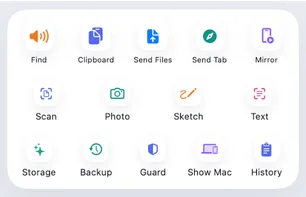
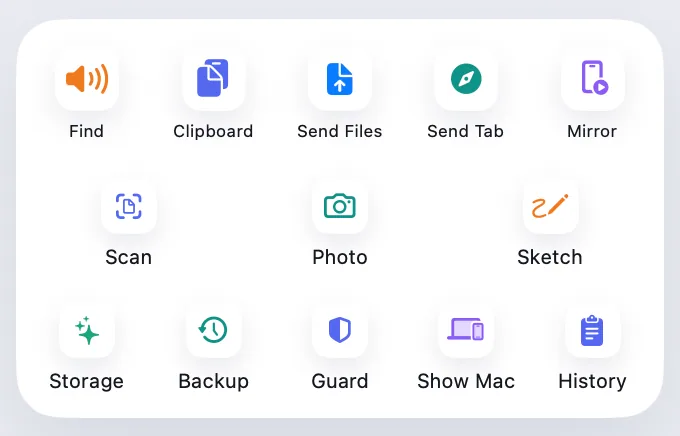
In any app that takes pictures or documents, such as Notes or TextEdit, choose Insert Photo, Scan or Sketch from Phone. Your phone opens its camera, and the result lands where your cursor is.
Copy Text from Phone Camera works the other way round. Point the phone at a page, and Hitch reads the text on your Mac and copies it. Nothing is sent to anyone else.
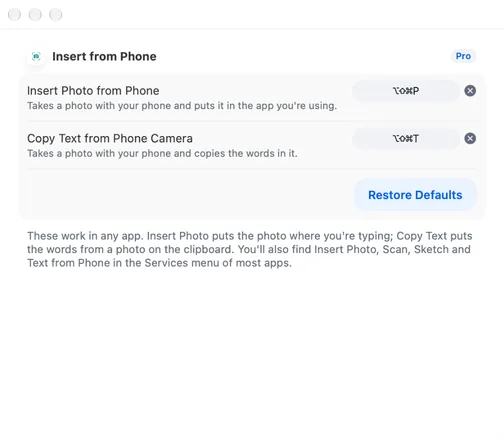
Two shortcuts do the same from the keyboard: ⌥⇧⌘P for a photo and ⌥⇧⌘T for text. You can change both in Settings › Shortcuts.
If the app can't take what comes back, Hitch copies it instead and says "Copied, press ⌘V".
How it works.
- 1
Put your cursor where you want it
In Notes, TextEdit or any app that accepts pictures.
- 2
Ask for the camera
Use the Services menu, the menu bar, or ⌥⇧⌘P for a photo and ⌥⇧⌘T for text.
- 3
Take it on the phone
The photo, scan or sketch appears on your Mac. Text goes to your clipboard.
Every Pro feature free for 14 days. No card.
In the app.
Screenshots from Hitch, with sample names and data.
The limits, plainly.
- Your phone has to be connected, on the same Wi-Fi or USB.
- One at a time: a second request while one is waiting is turned down with a short note.
- If an app refuses the picture after Hitch hands it over, Hitch can't see that. Use ⌘V from the clipboard.


Try it in the Hitch beta.
Hitch is in a tester beta for Mac and Android. Ask to join, and we'll let you know when there's room.
Every Pro feature free for 14 days. No card.
Mac: macOS 15 or later · Phone: Android 10 or later · Developer settings: Not needed
